OpenCode: The Open Source Claude Code Alternative
December 29, 2025
Updated August 2026: Anthropic no longer permits third-party tools to authenticate with Claude Pro or Max subscriptions. The provider guidance below reflects the current state.
Tired of being locked into expensive AI coding subscriptions? Frustrated that your Copilot investment only works with one provider? OpenCode is the open source answer: a terminal-native AI coding agent with 190,000+ GitHub stars that works with the ChatGPT Plus or Copilot subscription you already pay for, 75+ providers by API key, or completely free models.
Here is how to get productive with it.
What Makes OpenCode Different
OpenCode is not just another AI wrapper. It is a full coding agent that understands your codebase:
- Use your existing subscriptions - ChatGPT Plus/Pro, GitHub Copilot, and GitLab Duo authenticate directly (Anthropic is the exception, see below)
- 75+ LLM providers - Switch between cloud, local (Ollama), or free models instantly
- LSP integration - Real semantic understanding of your code, not just text matching (opt-in, enable it in your config)
- Plan vs Build workflow - Safely preview changes before applying them
- Undo everything - Made a mistake? One command reverts it
Setup
1. Install OpenCode
curl -fsSL https://opencode.ai/install | bash
Or use your package manager:
# npmnpm i -g opencode-ai# Homebrewbrew install anomalyco/tap/opencode# Chocolatey (Windows)choco install opencode
2. Connect Your AI Provider
opencode auth login
Select your provider. What you can authenticate with depends on which one:
- Subscriptions that work directly: ChatGPT Plus/Pro, GitHub Copilot, and GitLab Duo. No API key, no per-token billing. If you already pay for one of these, this is the cheapest good setup available.
- Anthropic: API key only. Anthropic does not allow third-party tools to authenticate with Claude subscriptions, so Claude models run here on per-token billing with a key from the Claude Console. If Claude is your main subscription, it goes further inside Claude Code itself.
- Everyone else: an API key from the provider, or sign in to OpenCode Zen for a curated list including free options.
3. Initialize Your Project
cd your-projectopencode
Once inside OpenCode, run:
/init
This analyzes your codebase and creates an AGENTS.md file that helps the AI understand your project structure, coding patterns, and conventions. This step is what makes OpenCode responses so much more relevant than generic AI tools.
The Plan vs Build Workflow
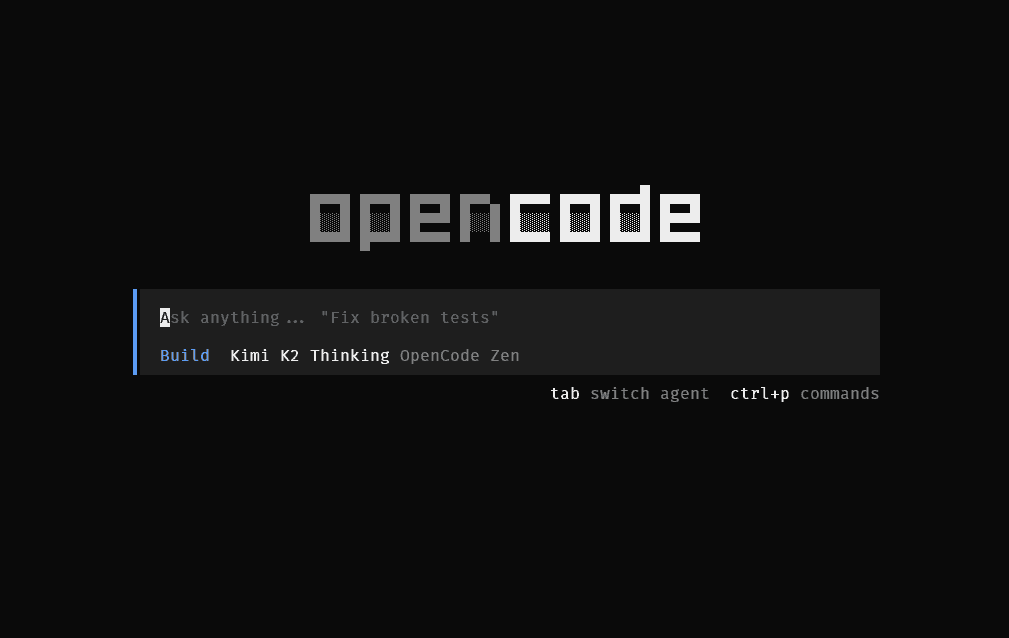
This is the killer feature most people miss. OpenCode has two modes, toggled with Tab:
Plan Mode - The AI analyzes your request and suggests changes without touching any files. You see exactly what it wants to do before it does it.
Build Mode - The AI executes changes, creating and modifying files as needed.
The workflow: Start in Plan mode, review the approach, then switch to Build when you are satisfied. This prevents the “AI went rogue and broke everything” problem.
Essential Commands
| Command | Shortcut | What it does |
|---|---|---|
/init | - | Analyze project, create AGENTS.md |
/undo | Ctrl+x u | Revert the last change |
/redo | Ctrl+x r | Restore a reverted change |
/share | - | Generate shareable session link |
/themes | Ctrl+x t | Customize appearance |
| Tab | - | Toggle Plan/Build mode |
Choose Your Model
Free: Sign up for OpenCode Zen and pick something from its free list. The lineup rotates as vendors cycle models in and out while gathering feedback, so check opencode.ai/zen for what is currently free. These models are genuinely capable for a lot of everyday coding work and cost nothing.
Best quality: Connect a ChatGPT Plus/Pro subscription, or bring an API key for Claude or Gemini and pay per token. Same workflow, premium models.
Maximum privacy: Run local models through Ollama. Your code never leaves your machine.
The key insight: your workflow stays identical regardless of which model you use. Switch based on task complexity, budget, or privacy needs.
Why I Made the Switch
I was tired of the lock-in. Claude Code only works with Claude. Copilot only works with OpenAI models. Every tool wanted its own subscription.
OpenCode separates the tool from the model. I use a frontier model for hard problems, a free Zen model for quick tasks, and local models through Ollama for client work that cannot touch external APIs. Same interface, same commands, same muscle memory, whichever model is behind it.
The model landscape does not sit still. Models leapfrog each other every few months, prices move, and provider policies change. With a provider-agnostic tool, adapting to any of that means editing a line of config instead of learning a new tool.
That flexibility is worth the switch.
Get started: opencode.ai/docs
Try free models: opencode.ai/zen
Install now:
curl -fsSL https://opencode.ai/install | bash